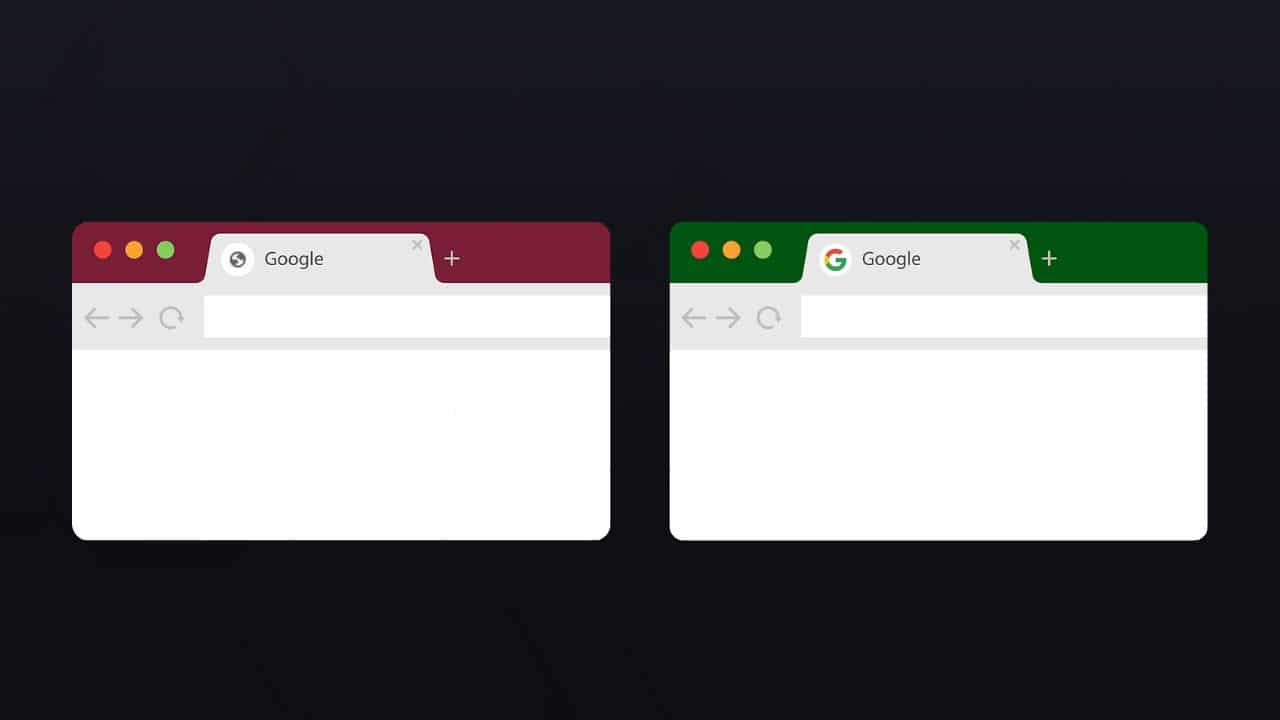
The importance of favicons has increased in recent times, largely due to the fact that favicons now appear in Google search results.
Since it is still in the testing phase, things may change from time to time, but currently with Google Ads, if you pass the “Advertiser Eligibility Verification Program” and upload your logo, your favicon will be displayed in your ad, so I think the general direction will probably be to continue with favicons being displayed in search results.
Advertisements undergo various screening processes, but so-called organic search results do not require any such screening and are determined by whether or not they are set up, so not being displayed would be a huge missed opportunity.
However, it is surprisingly common for a favicon to not display even after it has been set, and the causes can be small or difficult to notice.
Know exactly why your favicon is not displaying
When we receive inquiries or consultations about favicons not displaying , the actual locations where favicons are displayed vary widely.
- Favicons on browser tabs
- Favicon when bookmarked
- Search results from Google, etc.
- Smartphone home screen shortcuts
- Browser pinning etc.
There are actually surprisingly many places where favicons affect your site.
Therefore, even if you think your favicon isn’t displaying, it will take time to find the cause if you don’t know what it is talking about, so make sure you understand exactly what is not displaying.
However, the cases in which the favicon is actually displayed or not can be broadly divided into the following two cases.
- Browser tabs, favorites, smartphone home screen, etc.
- Search results from Google, etc.
The causes can vary greatly between these two, so let’s take a look at some typical examples of the causes for each case.
Use Favicon Checker to find out
In fact, by using an external favicon checking tool, you can easily determine the current status of your site’s favicon.
You can check the situation by using the website Favicon Checker.
Check how it looks in your browser and how it looks when added to the home screen of your iPhone or Android.
Reasons why it is not displayed on the browser or home screen
So, first let’s look at cases where the favicon does not appear when browsing a website in general, such as in a browser or favorites.
The URL and path of the image are incorrect.
Actually, this is surprisingly the most common case.
Favicon codes are often copied and pasted and reused, but there are surprisingly many cases where the image calling path is different depending on the site, but the image is still called as it was before.
Just as there are many cases where customers call about home appliances that aren’t working and it turns out that they weren’t actually plugged in, it is common for something that was assumed to be normal to actually be incorrect.
You could use a tool such as Web Site Explorer to check for errors in image calls, etc.
The cache remains
This is also a common problem when creating a website, but if the cache remains, it may take a while to update, and you may find yourself thinking, The favicon isn’t showing!
If the cache remains, in many cases it is actually visible to many other people, so you may not need to worry too much about it, but you can try clearing the cache and checking, or accessing the site in a different browser or in incognito mode.
Especially if you change the favicon image, it is common for this cache to remain and the previous image to be displayed, so be sure to check by using two different browsers.
Also, when clearing the cache, depending on the browser, the favicon cache may not be deleted by normal cache deletion and the cache data may be stored in a different directory.
Check the ico format and size
Current favicons can be configured to use png or jpg images, but originally favicon images were typically saved with the .ico extension.
For this reason, it is generally recommended to create them in .ico format, and the appropriate size is determined depending on the situation.
For this reason, it is now common to create favicon images as multi-icons, so if you have created a favicon image in jpg or png format, you can easily use a conversion tool to convert it to a multi-icon compatible favicon image in .ico format.
Basic authentication is enabled in a test environment.
This is often the cause if the favicon does not appear when you add a shortcut to your smartphone’s home screen.
This is one of the reasons why people get into trouble.
It is common to set up Basic authentication for testing before release, but of course you cannot access each file unless you clear the Basic authentication.
In a typical case, you have already entered your Basic authentication ID and password in the browser to clear the authentication, so when you access the image URL in the browser, the favicon image is displayed.
But when I add it to my smartphone’s home screen, I can’t see it… why? You may be stuck in a difficult situation, but the result is that the image file bypasses Basic authentication on the browser, but cannot be accessed on the smartphone’s home screen because it is Basic authentication-protected.
Furthermore, there are cases where the Basic authentication ID and password are not entered even when the screen is displayed, so this is where many people get into even more trouble.
However, in this case, if you test it by disabling Basic authentication, you will be able to view the site normally, so try doing that to make sure there are no problems.
Why doesn’t my favicon show up in Google search results?
Unlike on the browser, many people are troubled by cases where their website does not appear in Google search results.
This is more likely to have a significant impact on the number of visitors, so you may want to resolve this issue as soon as possible. Here are some common reasons why this may be the case.
The URL and path of the image are incorrect.
This is the same as when the image does not display in a normal browser.
If the image path or URL is incorrect, it will not be displayed even if you want to, so be sure to check it first.
The site has just been created and images have just been uploaded.
Unlike a favicon in a browser, a website must go through a number of steps to appear in Google search results.
The steps involve a Google bot visiting your site, recognizing it, storing it in Google’s database, and displaying it in search results.
If you have just uploaded your site, it will obviously not have been recognized by Google’s robots yet, so it will not be reflected in search results.
If you have just created a website or replaced an image, your first priority should be to get Google’s search robots to access and recognize it.
To request that your pages be crawled with the Google Favicon user-agent, request indexing of your site’s home page. It may take a few days for updates to appear in search results.
The guidelines also state this, so be sure to promptly request indexing of your site’s top page (home page) through the Search Console.
Try changing the URL.
When you replace an image, there are cases where Google’s bot has difficulty recognizing the new image and the old image continues to be displayed.
If that happens, it’s ultimately a problem with Google’s bot, and there’s nothing you can do but pray. However, if you still want to replace it quickly, you can change the image URL, etc., so that it will be easier to recognize as a new image.
You may be wondering if it’s okay to change it, but as long as the URL is fixed and you only change it once, there’s no problem, so unless you change the URL frequently and over and over again, you don’t need to worry.
Possible violation of Google guidelines
Of course, it is up to Google to decide whether or not to display favicons in search results.
Google has clearly published the rules for this, so let’s take a look at them. Define the favicon to be displayed in search results
Naturally, if there is anything that violates these guidelines, there is a high chance that it will not be displayed, so be sure to check.
Favicon size
In the guidelines,
The favicon size must be a multiple of 48px (e.g. 48x48px, 96x96px, 144x144px, etc.). For SVG files, there are no special dimensions. All valid favicon formats are supported.
However, when you actually check, you will find that many images are displayed even though they are not multiples of 48 pixels.
Since the guidelines say so, it would be better to prepare a multiple of 48 pixels. We recommend creating a multi-icon “favicon.ico” as mentioned above.
Due to the influence of meta tags
If it is an image-related site or the site’s management policy, there may be cases where images are set not to be displayed in search results.
The following meta tags are available to tell Google not to display images in search results.
<meta name="robots" content="noimageindex">I haven’t tried it yet, so I don’t know if this tag will explicitly prevent the favicon from being displayed, but if this meta tag is included, Google will follow the instructions and not display it in search results, so there is a chance that the favicon image will not be displayed in search results either, so it’s best to check to see if it’s included.
Robots.txt doesn’t affect favicons (apparently)
Robots.txt allows you to control Google’s robots in various ways, but as far as the guidelines go,
Google Favicon is a user agent for downloading favicons defined by websites. It is an infrequent crawler that visits a site’s home page based on signals collected during indexing or triggered by a user request. To request that your pages be crawled by the Google Favicon user agent, request indexing of your site’s home page. It may take a few days for updates to appear in search results.
The Google Favicon crawler ignores robots.txt rules if a user requests a crawl.
The number of people affected by this is extremely small, if not even that many, across all websites, but as knowledge, knowing that this is not related may be helpful when investigating the cause of the favicon not appearing.
Summary
Not displaying favicons has become a problem now that they appear in search results.
As a result, you have to pay attention to how you create it and the tags you put on the site, but sometimes cases arise where it still doesn’t show up for some reason.
The causes can be varied, ranging from basic things like the image not being uploaded or the file path being incorrect, to Google’s robots not yet crawling the site, the effects of Basic authentication, or caching.
There are many possible reasons for the favicon not displaying issue, so you need to clarify which is the case and investigate the causes one by one to make it display.